About the issue of accidentally disabling the citation prompt.
Answered

My previous setting was the default setting. If I didn't use this service, the injected object would appear gray, and when I hovered my mouse over it, it would prompt me to remove the injected object, and it would also display a shortcut key to remove it. One time, I accidentally disabled this type of prompt, causing me to now see all injections in the same color without any prompt. How can I restore it?
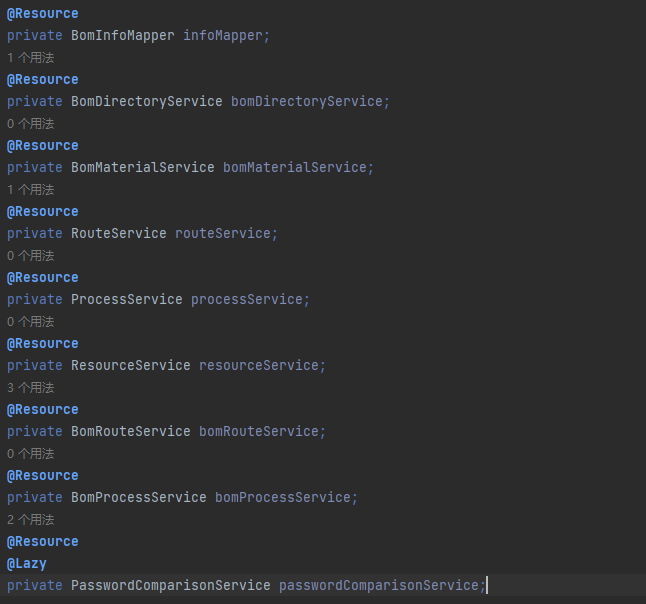
As shown in the picture, the color of the injected service is the same whether it is cited or not.
Please sign in to leave a comment.
Could you try enabling the Settings (`⌘ + ,` or `Ctrl + Alt + S`) > Editor > Inspections > Java > Declaration Redundancy > Unused declaration inspection, and see if it restores the default behavior? Thanks!
Thank you for your reply. I saw that the description of the setting you mentioned is indeed related to my problem. I found the relevant setting and found that the checkbox was not checked. However, when I checked it and saved it, I found that it did not have any effect. So I restarted IDEA and found that the checkbox had returned to its unchecked state when I opened the settings. I'm not sure why. I tried again, checked and saved, but it still didn't work. Even after restarting, it remained unchecked.
Do you have settings sync enabled - Settings (`⌘ + ,' or `Ctrl + Alt + S`) > Settings Sync?
Also, could you try following:
You can upload both the logs and settings zip files here: https://uploads.jetbrains.com, and provide the uploaded file ID. Thanks!