What is this?
Answered

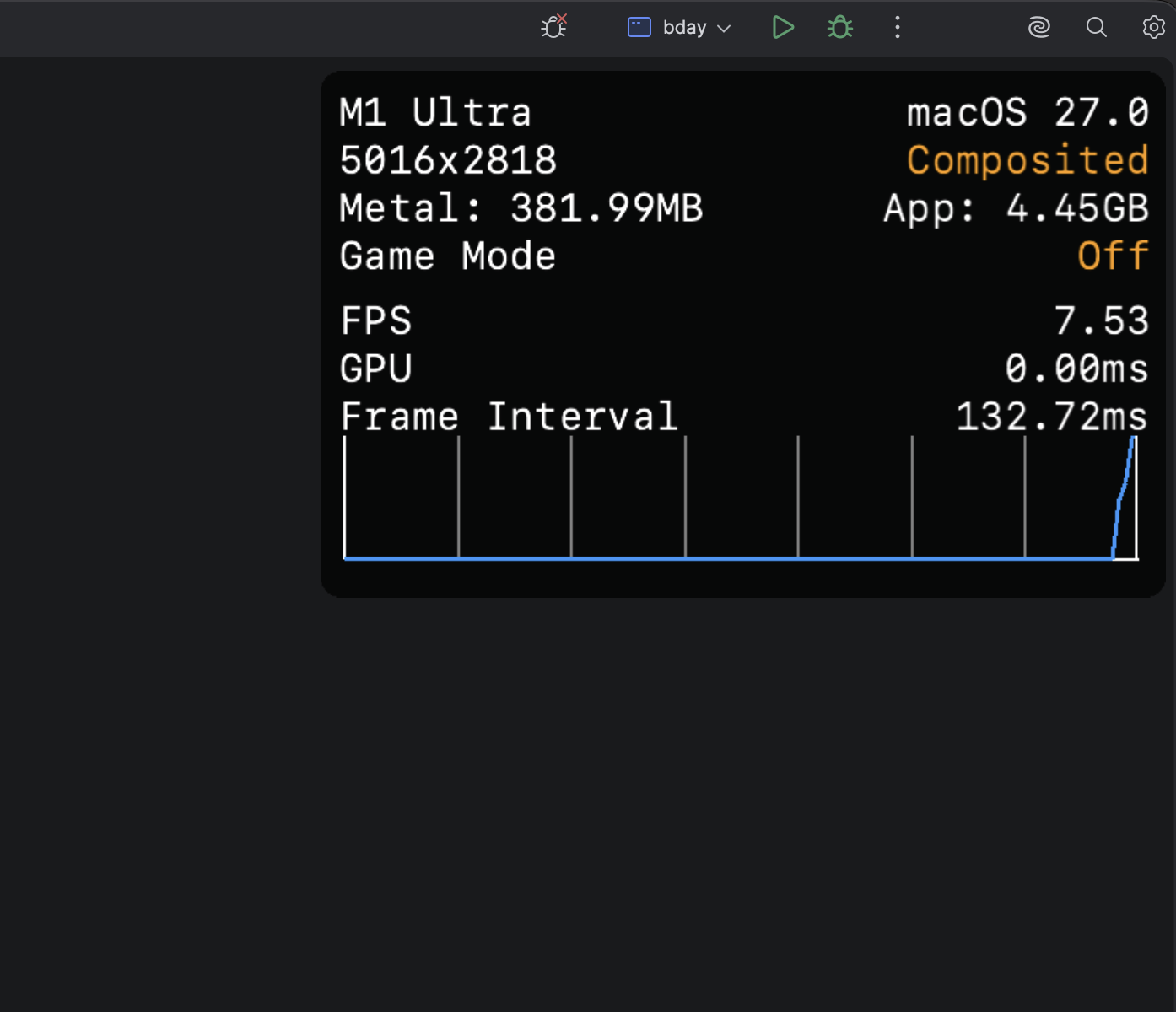
This info is new, it sometimes pops up when debugging and covers up parts of a dialog/buttons. How can I disable it?
Thanks
Peter
Please sign in to leave a comment.
The panel in your screenshot is the Metal Performance HUD, a macOS developer overlay. It is not part of IntelliJ IDEA. The IDE draws its windows with Metal, so when the HUD is turned on for the IDE process, macOS draws it on top of every IDE window, dialogs and popups included. The fields in your screenshot (device, resolution, Composited, Game Mode, FPS, GPU, Frame Interval) match Apple's description of the HUD.
Check these in Terminal, then restart the IDE:
launchctl getenv MTL_HUD_ENABLED. If it prints1, run/bin/launchctl unsetenv MTL_HUD_ENABLED.defaults read -g | grep -i hud. If it lists a key such asMetalForceHudEnabled, remove it withdefaults delete -g <key name>.MTL_HUD_ENABLEDin~/.zshrcor~/.zprofileand remove that line.To narrow it down, please also tell me:
If the HUD is still there after the restart, include the output of the two commands from steps 1 and 2.
1. launchctl getenv MTL_HUD_ENABLED returns 0
2. defaults read -g | grep -i hud returns no key
3. MTL_HUD_ENABLED is not configured in any bash/zsh profile
4. No menu bar app that toggles the Metal HUD
The Metal HUD appears in IntelliJ only when I start a debugging session (Shift-F9) for the second time.
It only appears in the IntelliJ IDE - not in other applications.
I think Metal HUD started when I updated to IntelliJ EAP 2026.3. I reverted to IntelliJ 2026.2 (via Toolbox) but Metal HUD does not disappear.
Please run these in Terminal while the HUD is visible:
defaults find MetalHudanddefaults find MetalForceHudps eww -p $(pgrep -f "Contents/MacOS/idea" | head -1) | tr ' ' '\n' | grep MTL_Also, when the HUD is on, macOS adds a Metal HUD menu to the menu bar. Check if you see that menu while IntelliJ IDEA is active.
This output can contain paths and other details from your Mac so we can create a private support request at https://intellij-support.jetbrains.com/hc/en-us/requests/new with the output, the menu bar result, and a link to this thread. We’ll continue the investigation there.
IntelliJ IDEA has no setting or registry key for the HUD. The one IDE-side option is the rendering pipeline: the HUD attaches only to Metal windows, so the IDE on OpenGL does not show it. To use that as a workaround:
-Dsun.java2d.metal=false.Hi Abhishek - thanks for pointing me in the right direction.
I noticed that the Metal HUD menu item appeared in IntelliJ when I typed Shift-F9 which was also assigend to the Run→Debug action. I re-assigned another shortcut to the Run→Debug action and the HUD menu does not appear anymore when I start debugging.
Now I can toggle the Metal HUD menu item in IntelliJ via Shift-F9 - but I cannot find where the shortcut is configured. I also cannot find any plugin that might be associated with HUD. It does not seem to be a global MacOS keyboard shortcut because it works only in IntelliJ.
I am using the -Dsun.java2d.metal=false workaround for now - which is fine.
Thanks
The Eclipse keymap binds **Debug** to Shift+Alt+D and Shift+F9, so each debug start also toggled the HUD. Keeping **Debug** on another shortcut is the fix. If the HUD appears again, press Shift+F9 to hide it.
The `-Dsun.java2d.metal=false` option is no longer required. Apple deprecated OpenGL on macOS, so you can remove the line in **Help | Edit Custom VM Options…** and restart the IDE to return to Metal rendering. Keep the line only if the HUD must never appear.
Hi Abhishek Sah - thanks for the explanation.
So the mentioned Eclipse behaviour is exactly what I experienced with IntelliJ.
When I used Shift-F9 for debugging, the session started right away. Now that I use a different shortcut, I get prompted by a small option dialog where I have to choose a Run/Debug configuration. Is there a way to bypass the dialog? I could not find anything under ‘Modify Options‘→’Before Launch’ to disable it.
Thanks
The popup comes from the Debug… action (with the dots, which is choose and debug config), which asks for a configuration first. Shift+F9 was probably on Debug, which starts the selected configuration directly. The new shortcut is most likely on Debug….
Debug.Oh no - I confused Debug… with Debug, thanks for the hint. Everything is fine now.