View file information from within IDEA
已回答

Maybe I'm just to stupid to find it, but is it possible to view information (size, date etc.) of project files within the IDE?
I've tried Ctrl+Q which seems logical to me but it only shows the full path of the file.
Thanks in advance!
Helge Walter
请先登录再写评论。
Hello Helge,
There's no such feature in IntelliJ IDEA. There are some third-party plugins
that support displaying this kind of information.
--
Dmitry Jemerov
Development Lead
JetBrains, Inc.
http://www.jetbrains.com/
"Develop with Pleasure!"
Hi Dmitry,
is there a plugin you can recommend?
Hi, Helge.
Be aware you can use "Show in view" action + show in explorer (works on windows) to reach file faster.
regrads, Alex
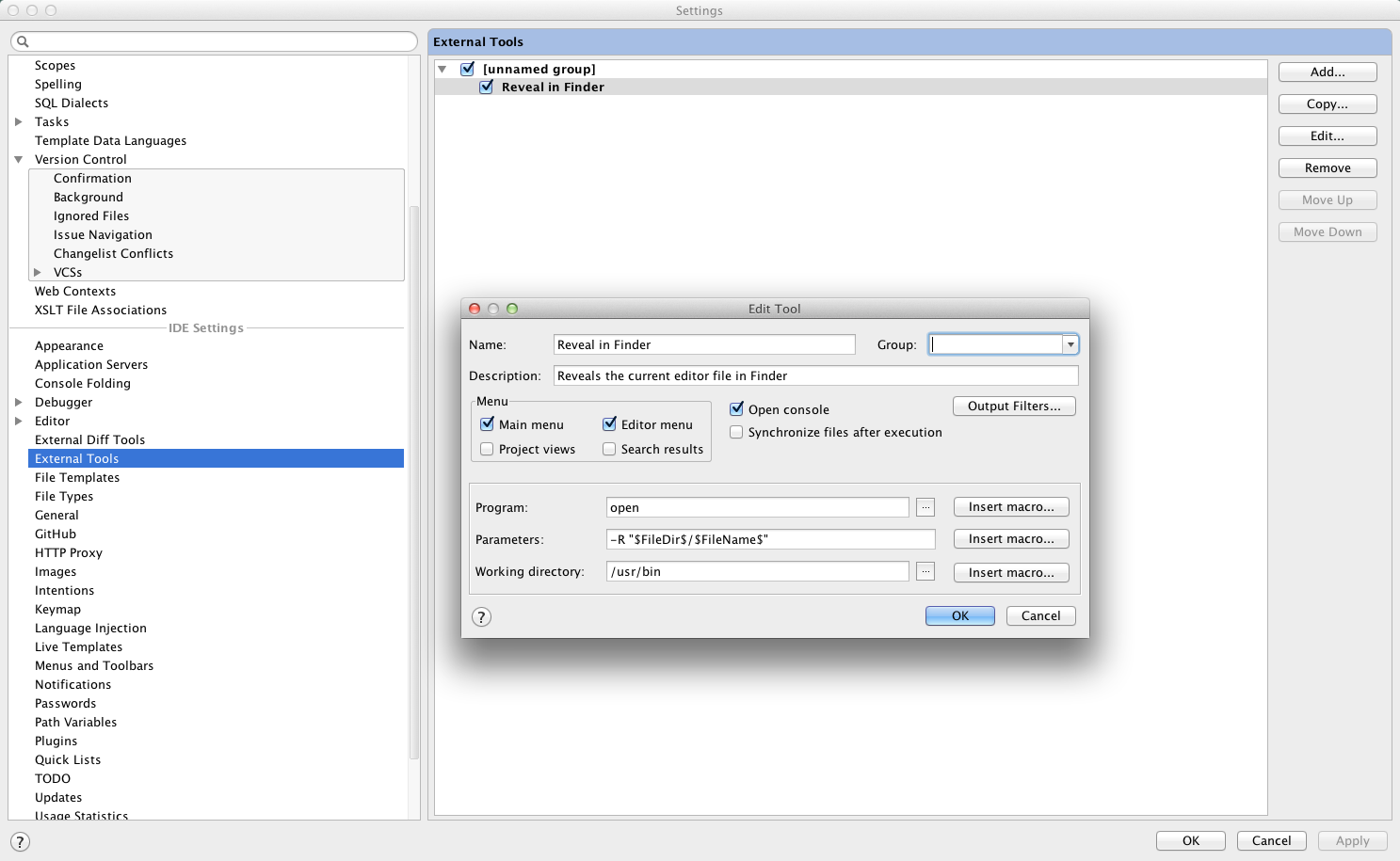
If you are on a Mac you can configure an external tool to open a file in Finder. You can then add a keyboard shortcut to it in keymaps (found in the External Tools folder in keymaps). This appears on the Tools menu.
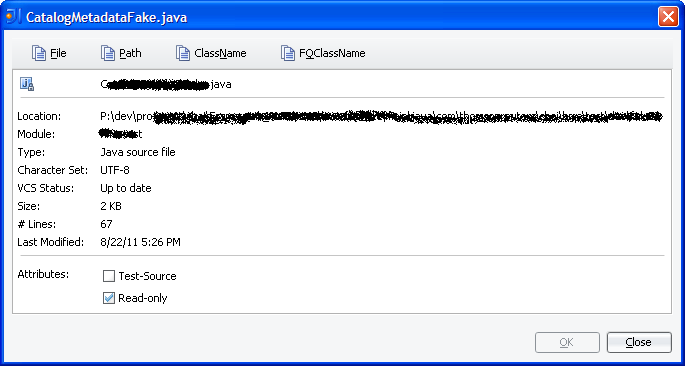
I use the "File Info" plug-in: http://plugins.intellij.net/plugin/?idea&id=193 In addition to basic information, you can copy the file name, full path to the file, the class name, or the Fully Qualified Class Name to the clipboard. Great for posting in documentation or an e-mail/IM to a colleague.
![]()
Please take note that, if I recall correctly, its default keyboard shortcut clashes with something (I forget what), so you'll want to go into settings | keymap and change it's hot key.
Thanks for the answers.
I found the "File Info" plugin too while browsing the plugin repositry. It has all functionality I need.
I tried the "File Size" plugin also, here you can have the size information of the file being edited without using any key type or mouse click. That's nice too. But occasionally it throws some NullPointerException forcing the red exclamation sign to blink ;-)
Greets,
Helge
I found the answer to this if anyone is still looking - simply use the 'View Documentation' feature on the highlighted file. I have only verified this on text files.
On mac it's ⌘+F1.
There is now such a feature. I actually activated it by accident and was looking how to get rid of it when landing on this page :)

I find it quite annoying, but sometimes it might be helpful:
You can activate/deactivate it by checking/unchecking "Details in Tree View" which is available in View->Appearance menu.