Rendered comment setting is not working
已回答

This is freshly installed IntelliJ IDEA CE on Mac M1.

I see that the option “Render All Doc Comments” is already disabled:
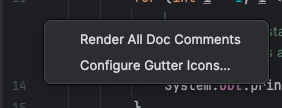
And in Settings→Editor→General→Appearance, they are also disabled:

I've tried invalidating the cache, restart the IDE, restart the machine, it's still showing rendered comments.
Is there more option somewhere that I need to disable?
请先登录再写评论。
Are you able to click the render icon in the gutter next to the Javadoc or press ⌃Ctrl+⌥Option+Q to switch the view?
Clicking the button does change it but whenever I close the file and come back to the same file, it still showing rendered version.
And also… I just realized that this problem only happens to the generated Main.java file.
I created my own file, create same function signature, exactly same doc comments and the Main.java file will show the rendered version while the other file would show non-rendered version.
Seeing same problem in my Windows 11, running same version.