Optimize imports is broken in new version

I upgrade to the new version, now I'm using IntelliJ IDEA 2024.3.4 (Ultimate Edition). From this upgrade the “optimize imports” is not working well. It's not using the “Import Layout” configuration. Before this upgrade always worked well.
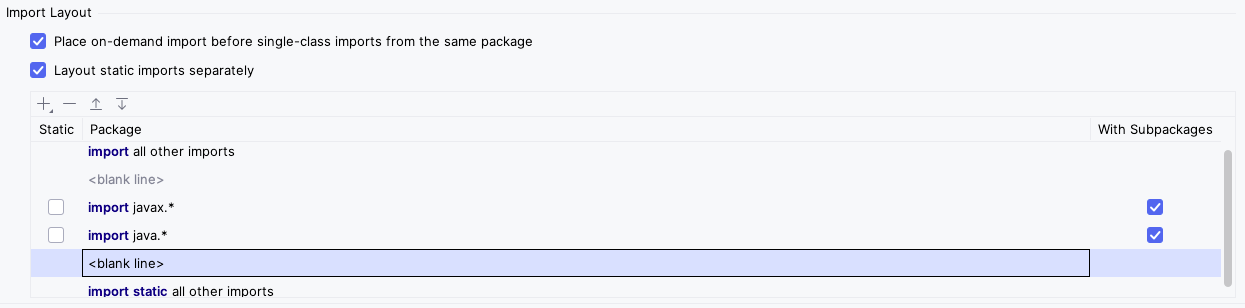
In the Editor → Code Style → Java, you can go to Imports Tab and change the “Import Layout”. In this version I have configured a layout, but the “Optimize Import” change the order or the imports without using that layout. In previous versions was working. I even change the layout several times, but the option does not use the configuration.
You can see that i have the “import static all other imports” at the end and the “java.*” before “import all other imports”, but the new version always reorder the imports, moving the “import java.*” and “import static” at the beginning.
Please sign in to leave a comment.
It seems that is the “import all other imports” what it is not working. If I add imports with for example “com.” or “org.” prefixes, then it works.
import all other imports
import com.*
import org.*
<blank line>
import javax.*
<blank line>
import java.*
<blank line>
import static all other imports
The problem is that then i have to add the prefix of all my imported packages, because it seems the not listed packages are not considered as “import all other imports”.
Sorry for the inconvenience.