Modify Islands Theme
Answered

How can I change the background of tool windows in the new islands theme?
I really want to set the background for terminal tabs, file tabs, overall project window background.
Please sign in to leave a comment.
Hi Phil, and thanks for contacting JetBrains support.
To achieve that, you will need to change the Editor color scheme. Could you please go to Settings | Appearance and Behavior | Appearance, and select the theme’s default option, as shown in the image below:
After doing so, the background of the Editor, Terminal, and other tool windows should correctly match the selected theme.
Thanks for the reply Petar
I want to manually set the background colour of the tool windows.
The main editor is done from Settings > Editor > Color Scheme > General > Text > Default Text > Background
The terminal is Settings > Editor > Color Scheme > Console Colors > Reworked Terminal > Default Background
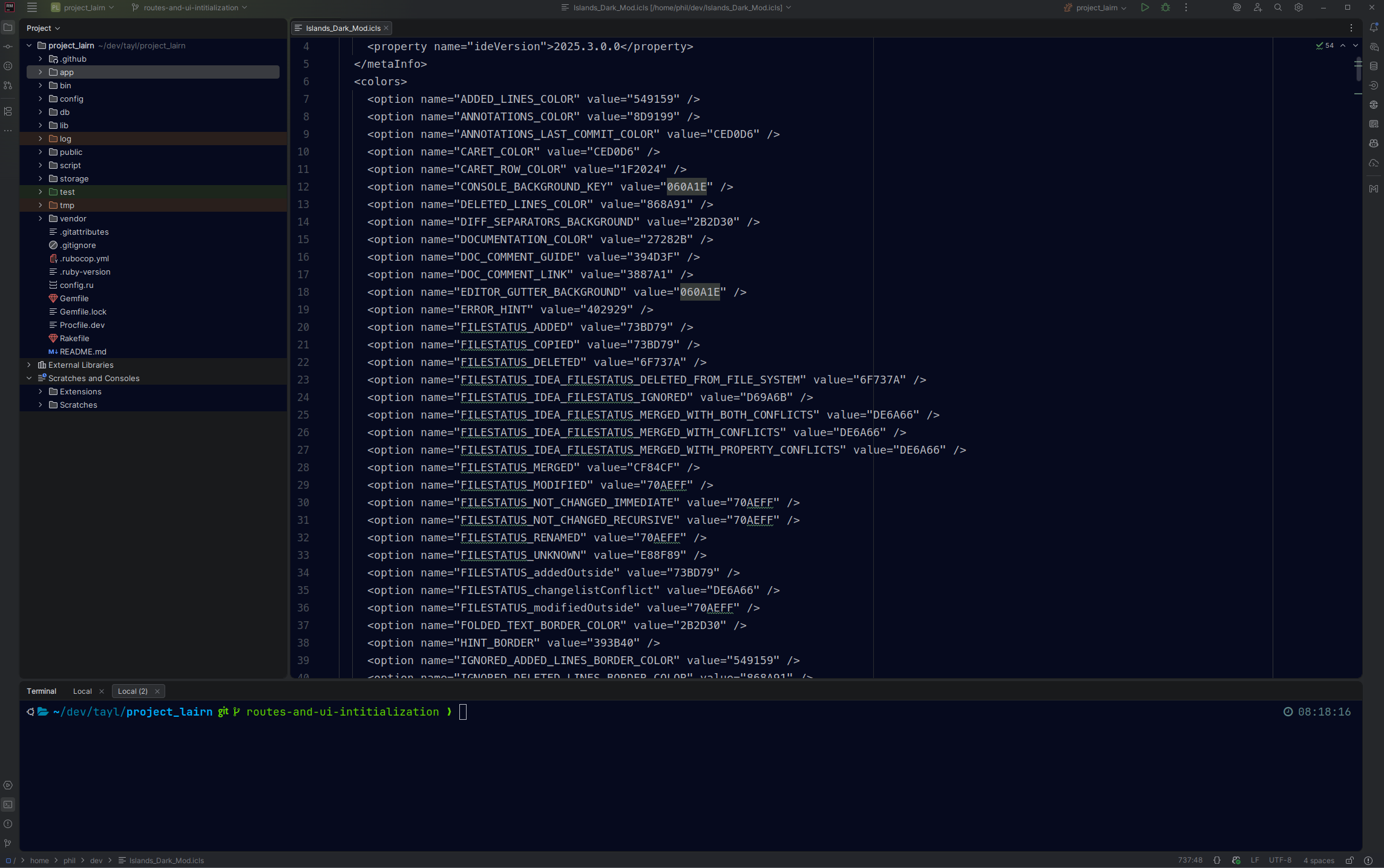
The project window used to work from Settings > Appearance & Behaviour > File Colours > + to add new, all, pick colour, move to bottom of order. This no longer updates the full background of the window, shown in my screenshot, it leaves the default gray for areas where there are no files.
I would also like a way to customise terminal tab background and file tab backgrounds, outside of changing the theme. (Editing the overall interface theme)
Hi Phil, got it, sorry I thought you wanted to use the theme’s default colors across all tool windows.
I am afraid the exact functionality you are looking for is not supported, but I found two workarounds:
2025.3, as earlier versions had a bug where background images were not displayed correctly when using the new Islands themes (see IJPL-192439).ToolWindow.backgroundandEditorTabs.underlinedTabBackground. You can find other keys by using the UI Inspector.edit: I recommend enabling Color Key Picker in the UI Inspector; it makes finding keys much easier.