problem with imports. Imports are in line now insteat in upper area.

Hello,
i got a question to imports.
Im used to intelliJ generating imports (e.g. for a OnClickListener) in the top area of code like this :
import android.view.View.OnClickListener;Im not sure what I did, bt now i can not force InteeliJ to do it that way.
Now it looks like this:

and after applying the Quick Fix:
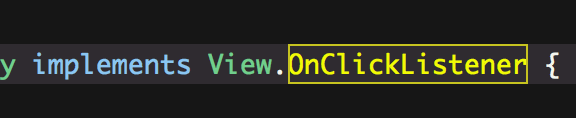
Is it perhaps a setting, that i changed unawares?
Im not sure but i guess, this is since I use the 2018.1. I opened old projects from i know the imports are all in the upper area and IntelliJ changed it to the in line import.
Another information: After applying the quick Fix, Intelli is showing again a QuickFix option:
 And now it moves the import in the upper area.
What can I do that this works in just one step? Im sure it worked in one step in my older projects.
Hope someone can help me.
Thanks a lot!
Please sign in to leave a comment.
Please check settings in File | Settings | Code Style | Java | Imports tab. Make sure the Use fully qualified class names option unchecked.
Hello Andrey,
thank you for your advice, I proved it but that option is unchecked.
Looks like you have disabled the Insert imports for inner classes option in Imports Code Style settings. Please check it is enabled. Thanks.
Thank you again. Im gonna check it when I'm at home.
Update: @Andrey
Thats it. It was unchecked. You solved my problem!
Thank you so much!
Patrick