Couldn't upload helpers for remote interpreter, is not a file or directory

I'm trying to use a remote SSH interpreter, however I get the error:
Couldn't upload helpers for remote interpreter: File C:\Users\Leo--\AppData\Local\JetBrains\PyCharm2021.1\remote_sources\-893816976\131958380\.pycharm_helpers\packaging_tool.py: C:\Users\Leo--\AppData\Local\JetBrains\PyCharm2021.1\remote_sources\-893816976\131958380\.pycharm_helpers\packaging_tool.py is not a file or directory
The folder $HOME/.pycharm_helpers/ exists on the remote machine, here $HOME points to /usr/stud/mutti
What could solve this? Thanks in advance.
Please sign in to leave a comment.
Hi, could you please completely remove all SSH interpreters, SSH configurations and deployment configurations, remove ~/.pycharm_helpers from remote host, and create SSH interpreter from scratch? Do you get the issue then?
Hi, it didn't work. Just to mention, the project folder on the remote machine is in /work/mutti/projects/test_ssh, not in some tmp folder.
Could you please show a screenshot of the helpers path from interpreter settings?
Hi, here is the screenshot. As I had mentioned in my first post, $HOME points to /usr/stud/mutti.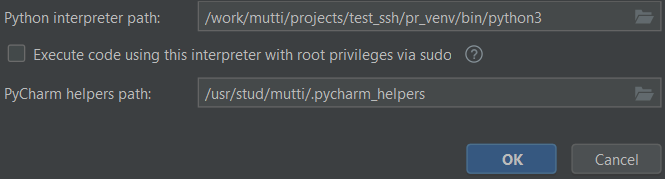
Could you please add the following lines to **Help | Diagnostic Tools | Debug Log Settings...**:
(keep the # character)
Then reproduce the issue and provide Logs from **Help | Collect Logs and Diagnostic Data**
You can use uploading service at https://uploads.jetbrains.com/ , and provide upload ID in your reply.
Hi, the upload ID is 2021_06_12_7E6BDTCve1S1Lg1K
I included the whole .zip file, the logs from today are in folder threadDumps--20210612-093634-PY-211.7142.13 (I have reproduced them twice, the latest being threadDumps--20210612-093634-PY-211.7142.13 / threadDump-20210612-094005.txt ).
Thank you again.
Thank you,
Could you please try reset IDE settings to default by using File | Manage IDE settings | Restore Default Settings... and setup SSH interpreter again from a fresh state? Your current settings will be backed up, so you can revert to them later (to do this, just import settings from the backed up folder).
If this doesn't help, please provide screenshots of the following:
- path mappings from Preferences | Project:<name> | Python Interpreter
- path mappings for your deployment (Preferences | Build, Execution, Deployment | Deployment > Mappings tab)