How do I change location of the default project "Welcome to PyCharm"?

Can someone help me with this?
For some reason PyCharm set a location of the “Welcome to PyCharm” in one of my project folders and I can't seem to be able to change it!
The only settings I found is in Settings - WelcomeScreen → Project Structure, but there is a problem with it:
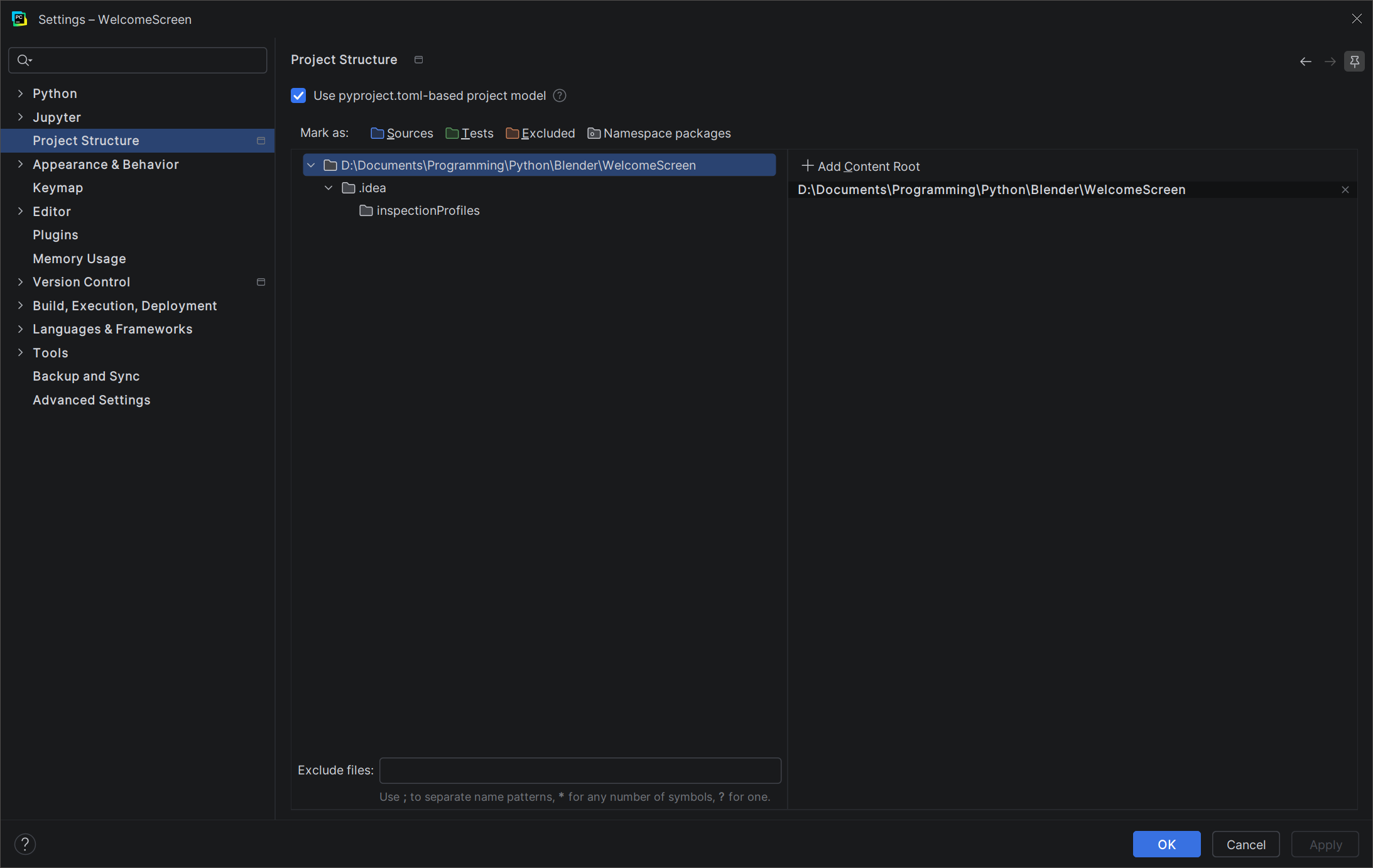
I tried to change the location to some space in one of my other drives. I also copied the content of the default project folder to a new location, and then set that location in Project Structure. Here's a screenshot:
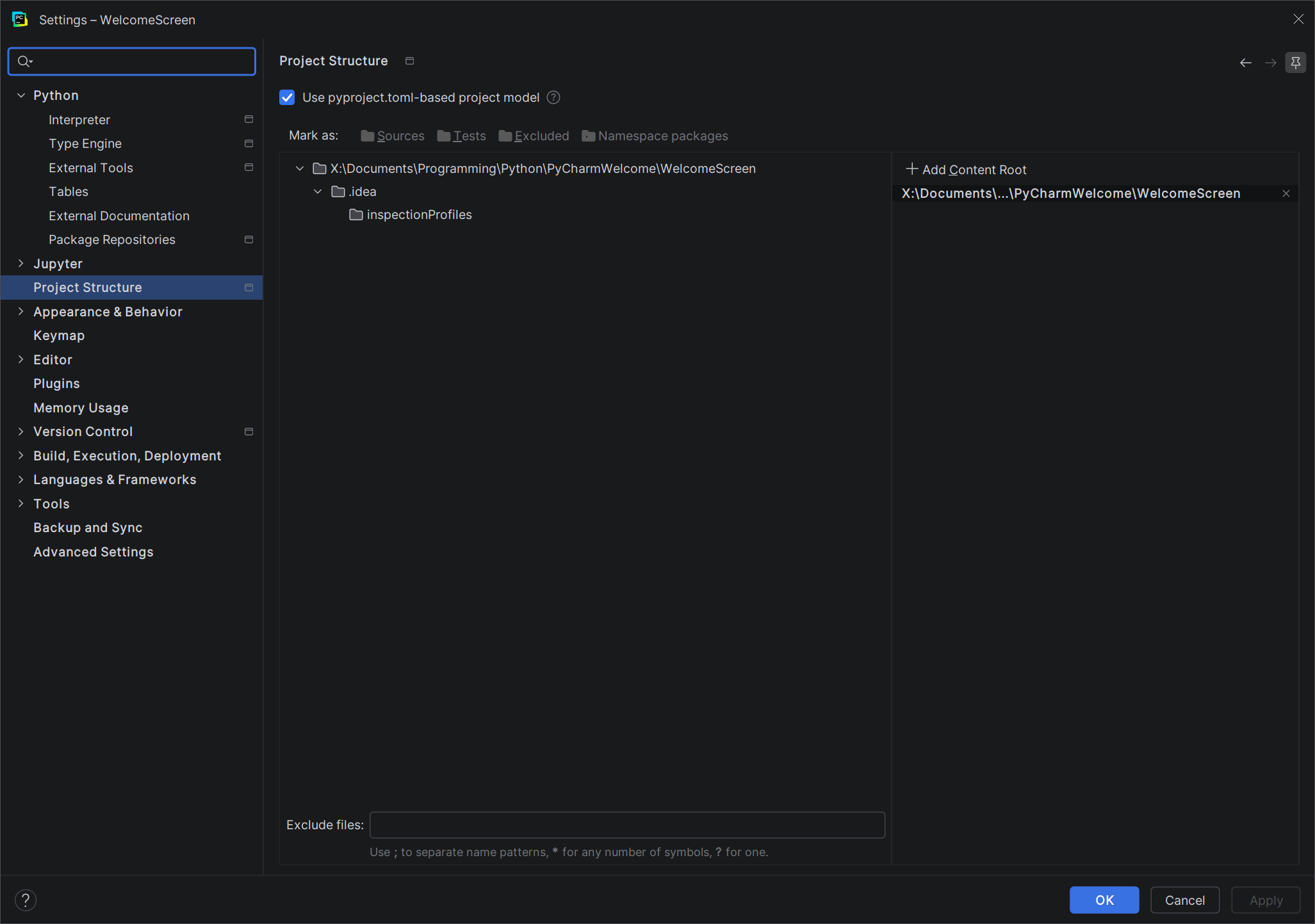
I applied changes, pressed OK, closed PyCharm, then deleted the old folder.
After the first restart, PyCharm still re-created the same project folder in the old location, while settings in Project Structure remained the same meaning Content Root was set at the new location. After the second restart, everything completely reverted to the old settings (see the 1st screenshot) as if I didn't make any changes!!!
I don't don't understand it.
My Spec:
PyCharm 2026.2.3Build #PY-262.10968.92, built on September 18, 2026Source revision: eea96f98b1a38Runtime version: 25.0.4+1-b508.27 amd64VM: OpenJDK 64-Bit Server VM by JetBrains s.r.o.Toolkit: sun.awt.windows.WToolkitWindows 10.0Exception reporter ID: 18052514c3b1235-8a46-41b2-a7f7-cda333ea0abdJCEF version: 144.0.15-262-b37GC: G1 Young Generation, G1 Concurrent GC, G1 Old GenerationMemory: 2048MiBCores: 32Registry: ide.experimental.ui=true trace.state.event.service.url=https://api.jetbrains.cloud/trace-statusNon-Bundled Plugins: ru.adelf.idea.dotenv (262.10968.117) OrgMode (0.5.0)
Please sign in to leave a comment.
Welcome screen is the default project created with the new Show welcome Screen in non-modal mode option enabled at Settings | Advanced Settings -
Disabled this option and you should be able to set the desired location for a brand new created project, which once you set it, is saved as the default location for newly created ones.
Let me know if this helps.
Thanks. I disabled the option, and PyCharm stopped creating the folder in the wrong location. I’m not going to use the Welcome project. It’s rather confusing and causes more problems than it solves.