Automatically align columns in Cucumber examples

Hi,
The Help says to automatically align the columns in Cucumber Scenarios/Examples (as part of a Scenario Outline) one should enter Ctrl-Alt-L. That sounds like a really handy feature. Unfortunately, Ubuntu Linux uses that key combination to lock the desktop, so when you enter it you are blasted out of the IDE and everything else that is running.
I fired up Settings > Keymap in order to try to change the mapping, but could not find this action. So, two questions, if you don't mind:
1) How can I change this specific key mapping?
2) Is there a way to enter a key combination and have it display the corresponding action? If so, can you tell me how to do this? (I'm sorry if it's in the KeyMap doc; there is so much going on there that I just gave up trying different things.) I'd like to be able to enter this key combination and have it take me right to the "Align Cucumber Examples" setting so I can then change it.
Similarly, there are some actions I use a lot but which have awkward key combinations. Let's say something I like uses Alt-Ctrl-Shift-X and I'd like to change that to simply Ctrl-W. But I don't know what (or even if) Ctrl-W is already used for something else. So again, I'd like to be able to simply enter or specify a key combination and have the Settings tell me if it is mapped to something, and if it is, what it is mapped to.
Thanks,
Larry
请先登录再写评论。
Hello Larry,
The reformat action can be found under Main menu | Code | Reformat code in
the keymap tree.
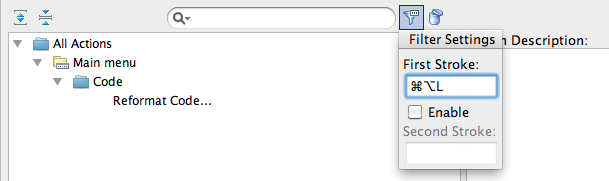
To find an action by keyboard shortcut, press the "Shortcut filter" button
to the right of the search field in the keymap settings panel.
--
Dmitry Jemerov
Development Lead
JetBrains, Inc.
http://www.jetbrains.com/
"Develop with Pleasure!"
Hi Dmitry,
Thanks for the reply. I tried the 'Reformat Code' and it worked like a charm - thanks. You might want to tell the Help people to include the actual menu choice in the documentation, specifically, in the 'Creating Examples Table in Scenario Outline' page it simply says "Press Ctrl+Alt+L to align columns in the Examples section". Mentioning the "Code > Reformat Code" menu option would have helped.
I didn't have as much luck with the Keymap, though. I actually tried what you suggested and could not get it to work, which is why I asked the question in my post. I just tried again and I still don't think it's working right. (Or maybe I just don't understand it.)
Let's take the reason I asked this question: "Ctrl+Alt+L"... When I click the 'Filter' icon and press the 'Ctrl' key nothing happens. Ditto for the 'Alt' key. So it doesn't even recognize arguably the two most important "special shortclut keys". It does, however, recognize the following keys: up, down, left, right, backspace, tab, caps-lock, and the "Windows" key (on my Microsoft keyboard). But it seems that none of these are "special shortcut keys", so I'm still confused as to how to find out if and what combinations such as "Ctrl+Alt+L" or "Alt+Shift+J", etc. are mapped to.
Thanks,
Larry
Hi Larry,
I think it is because Ubuntu dispatches Ctrl+Alt+... shortcuts and they are not visible for the application. On Mac after a pressed "Ctrl+Alt+L" corresponding key stroke name appeared in "first keystroke" field and tree was automatically filtered. Try to temporary disable you Ctrl+Alt+ shortcuts.
By the way which keymap do you use? E.g. "Default for KDE" keymap is more friendly for ubuntu users and reformat code is mapped to alt+shift+L
Thanks a lot, Roman. Your suggestion to switch my keymap to "Default for KDE" worked like a charm!
-- Larry